
How to Set Up a Nail Salon Turn Tracker App: A First-Week Checklist
Choosing a turn tracker is the easy part. The first week decides whether your floor actually trusts it. If techs keep a paper list in their pocket “just in case,” or the desk still asks across the room who does acrylic, the app is running next to the old system instead of replacing it.
This checklist walks through setting up a nail salon turn tracker app for real use: what to enter before day one, the house rules to agree on, how the desk should use the filters, and what to review at the end of the first week. If you are still deciding what a turn tracker should do in the first place, start with our nail salon turn tracker page. This guide assumes you are ready to switch.
Before day one: set up the team once
Most first-week problems trace back to a rushed setup. Spend the time once, before the doors open, so nobody is fixing profiles in the middle of a Saturday.
- Add everyone who takes walk-ins. A rotation is only fair if every tech is on it. Fair Flow is priced per location with unlimited staff, so there is no reason to leave anyone off.
- Give each person a technician type and a private PIN. Joining the queue needs permission, at least one technician type and a PIN. Hand out PINs before opening, so nobody can join or move as someone else.
- Set each employee’s services. In their staff settings, mark what each person does and what they do not do. This is the step salons tend to skip, and it is the one that makes the service filter useful later.
- Add phone numbers. With a number on file, one tap on the board calls the next tech and a voice message tells them their client is waiting.
- Pick the daily reset time. The queue resets on its own at the time you choose, so every morning starts with a clean list.
- Decide who can reorder. Give manager permission to the people who should fix a mistake in the order or take someone off the list when they leave.
- Colors are optional. You can give each person a color that means something in your salon, or skip it.
Write the house rules on one card
An app does not settle arguments by itself. Clear rules that everyone heard on the same morning do. Keep them short enough to fit on one card at the desk, and read them out at the first team meeting:
- Join the Available list when you arrive, in order of arrival.
- Start moves you to In service. Finish sends you to the back of Available.
- Stepping away for a break, lunch or a call? You go on Hold. Release brings you back to the same spot.
- Taking a quick, small service? Hold keeps your place, so it does not cost you your turn. There are no half turns. Every turn is a full turn.
- A client who asks for a specific tech is handled at the desk under the salon’s own policy, outside the walk-in rotation.
- Only a manager reorders the list.
For the reasoning behind each rule, see the rules a fair rotation has to handle.
Day one: teach the desk the two filters
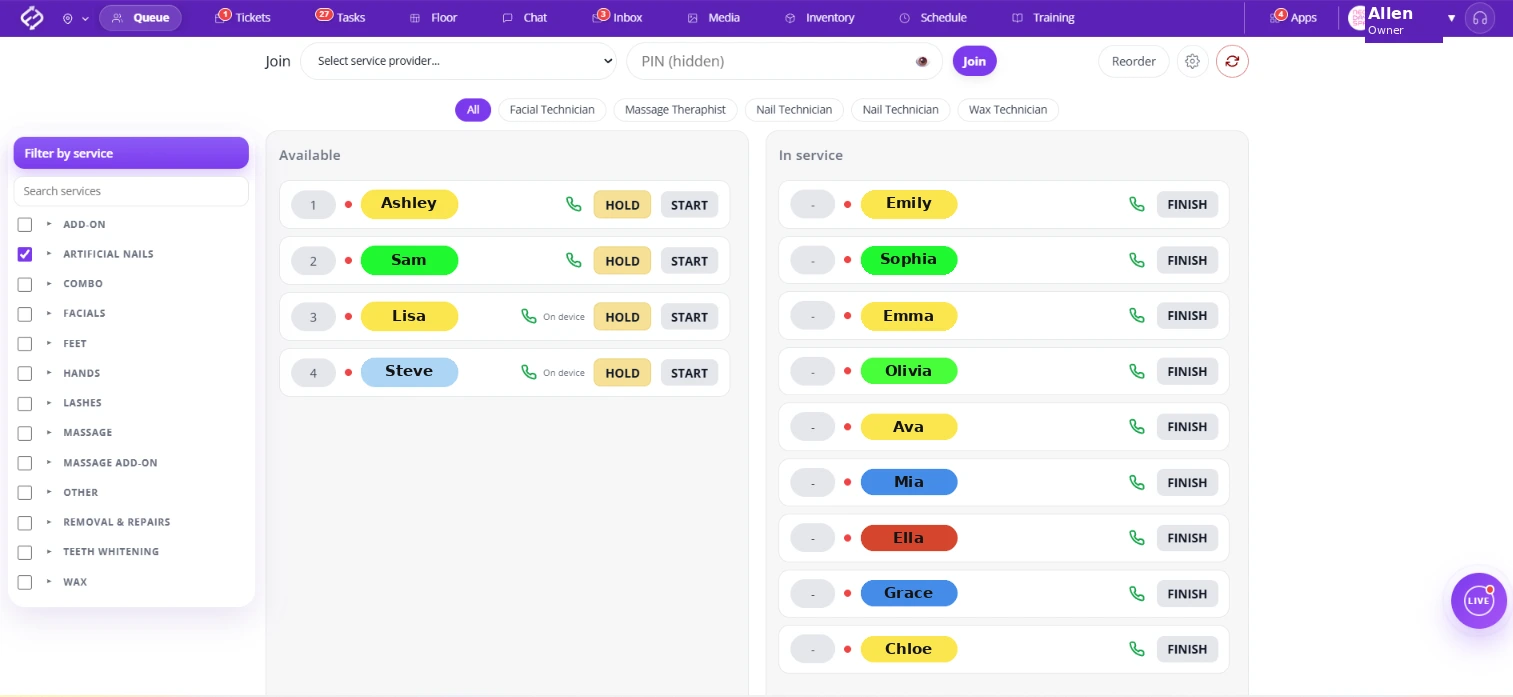
Picture 10:30 on the first morning. A walk-in wants an acrylic fill. Ashley is number 1 on the Available list, then Sam, Lisa and Steve, plus a facial technician and a massage therapist who are also free. On paper, the desk has to remember who does acrylic. In Fair Flow Queue, the desk uses two filters together:
- The role filter across the top narrows the board by technician type, for example nail technicians, so facial, massage and wax staff drop out of view.
- The side filter, Filter by service, groups services into categories such as Hands, Feet or Combo. Tick a whole category, or one specific service inside it, and the board shows only the employees assigned that service in their staff settings, still in turn order.
That is why the setup step matters. Once services are set, nobody has to remember who does gel, a manicure or acrylic. The desk looks at the filtered list and the person at the top is up. Fair Flow does not auto-assign a walk-in or skip anyone on its own. The desk still makes the call, on a board everyone can see.
When the next walk-in is ready, one tap calls that tech’s phone, so nobody has to walk the floor looking for them.
Days two to four: close the small gaps
By the second day the rules are clear. What causes friction now are small habits that come from the paper list:
- Started but never finished. A tech who finished a client but was not sent back to Available is invisible to the next walk-in. Make Finish part of walking the client to the desk.
- Gone home, still Available. When someone leaves for the day, a manager takes them off the list right away.
- Moving someone down instead of Hold. If a lunch break is handled by reordering, the tech loses their place. Use Hold, and Release when they are back.
- Wrong people in the filter. If the service filter shows someone who does not do a service, or hides someone who does, fix that person’s services in their staff settings once. Do not work around it at the desk.
End of week one: review the turn counts together
Fair Flow keeps a turn count for every tech and a day-by-day history, and joins, starts, finishes, holds and reorders are logged. At the end of the first week, sit down with the team and open the record together.
Two things usually come out of that review. First, the questions that used to be arguments, “I feel like I got skipped,” now have an answer anyone can look at. Second, you will spot the setup gaps that are left, such as a service missing from someone’s settings, while they are still easy to fix. For running the board on the busiest days after that, read fair turns on a busy walk-in day.
The first-week checklist
- Every tech added, with a technician type and a private PIN
- Services set for each employee: what they do and what they do not do
- Phone numbers added for one-tap calls
- Daily reset time chosen
- Manager permissions decided
- House rules card at the desk, read out at the first meeting
- Desk trained on the role filter and Filter by service
- First turn count review on the calendar for the end of the week
Where Fair Flow fits
Fair Flow is a salon operations platform. Its Queue runs the walk-in rotation, next to digital service tickets, tasks, the employee inbox, schedules and the time clock. It runs the floor alongside the tools you already use for appointments and checkout. The queue is internal: clients do not see their place in line.
Pricing is per location, not per person: $99 a month with unlimited staff, and a 14-day trial. See pricing, or if you are weighing a simple list against a full platform, read when a free turn tracker is enough.